How to use LookAhead Pro
LookAhead Pro turns the sequence of operations on your rig into a living look-ahead: plan each step, line up the vendors it needs, and get reminded to call them before the window closes. This guide takes you from a blank rig to a complete schedule that re-times itself as the plan changes. The first time through takes about ten minutes.
You don't have to imagine any of this. Every screenshot and clip on this page comes from Northern Basin Drilling — the example org that's already in your org list the moment you sign in. Open it and follow along (it's read-only, so you can't break anything), or tick "Start with a copy" when you create your organization and the whole program — rig, wells, vendors, schedule, reminders, rentals — becomes yours to drag, split and re-sequence.
Looking for the full manual? It ships inside the app — thirty-odd articles at app.lookaheadpro.app/help, reachable from the ? in the header and from the ? beside most page titles, which opens the article for the screen you're on. This page is the tour; the manual is the detail.
On this page
- The seven concepts
- 1. Add your rig, pad & first well
- 2. Build the operation sequence
- 3. Tune each operation
- 4. Plan across a pad — moves & walks place themselves
- 5. Read and edit the schedule
- 6. When the day doesn't go to plan — split, walk, re-sequence
- 7. Save your vendors & rig contacts
- 8. Attach vendors to operations
- 9. Get reminders, orders, certs & to-dos — call or text in one tap
- 10. Send an order — and keep the log
- 11. Track rental days & bill the well
- 12. Reuse a program with templates
- 13. Bring your crew
- 14. Learn from your history
- Tips for the field
- Need a hand?
The seven concepts
A handful of terms run through the whole app:
- Rig — your drilling or completions rig; the top of the plan.
- Pad — a site that holds one or more wells. Group wells onto a pad and LookAhead Pro handles the rig moving onto and off the pad, and walking between wells on it.
- Well — a borehole the rig works; it belongs to a rig (and, optionally, a pad) and holds a sequence of operations.
- Operation — a single step (Drill Surface, Run Casing, Cement, and so on) with a start time and a duration. Operations run back-to-back.
- Vendor — a service company you attach to an operation, with the lead time it needs to mobilize.
- Block — an unbroken run of operations on one well in one hole section ("13-3 surface"). It's how the crew talks about the program, and it's what you move when you re-sequence the drill order.
- Look-ahead — the whole contiguous schedule for a rig — operations, vendor calls, and the rig's own moves and walks — shown on a time-scaled Gantt.
1. Add your rig, pad & first well
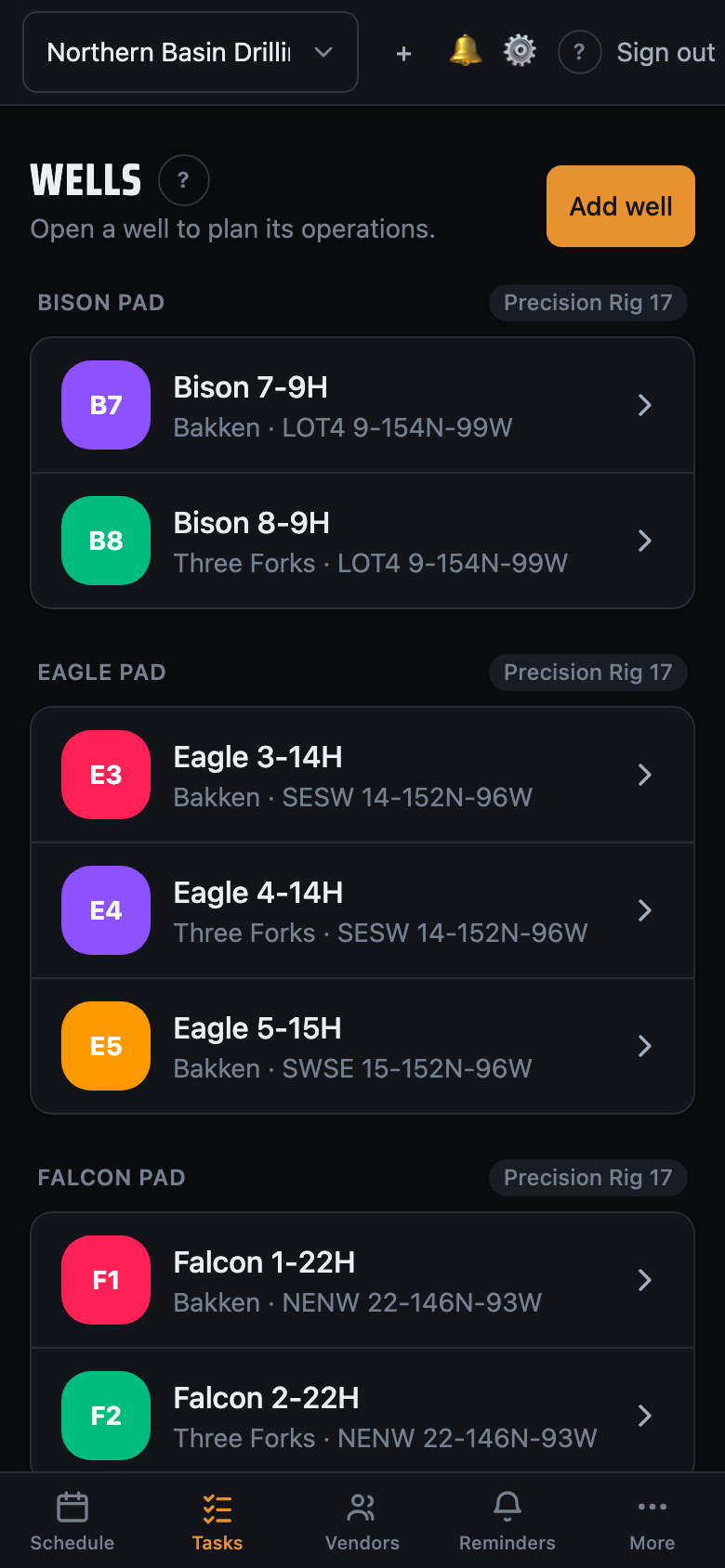
Create a well, give it a name and target formation, then assign it to a rig — if the rig doesn't exist yet, add it right from the rig picker with a name and location. If the well shares a site with others, put it on a pad; wells are grouped by pad and rig on your home screen, so everything for a rig stays in one place. A well doesn't have to belong to a pad — a standalone well works exactly the same way, it just gets no pad moves.
2. Build the operation sequence
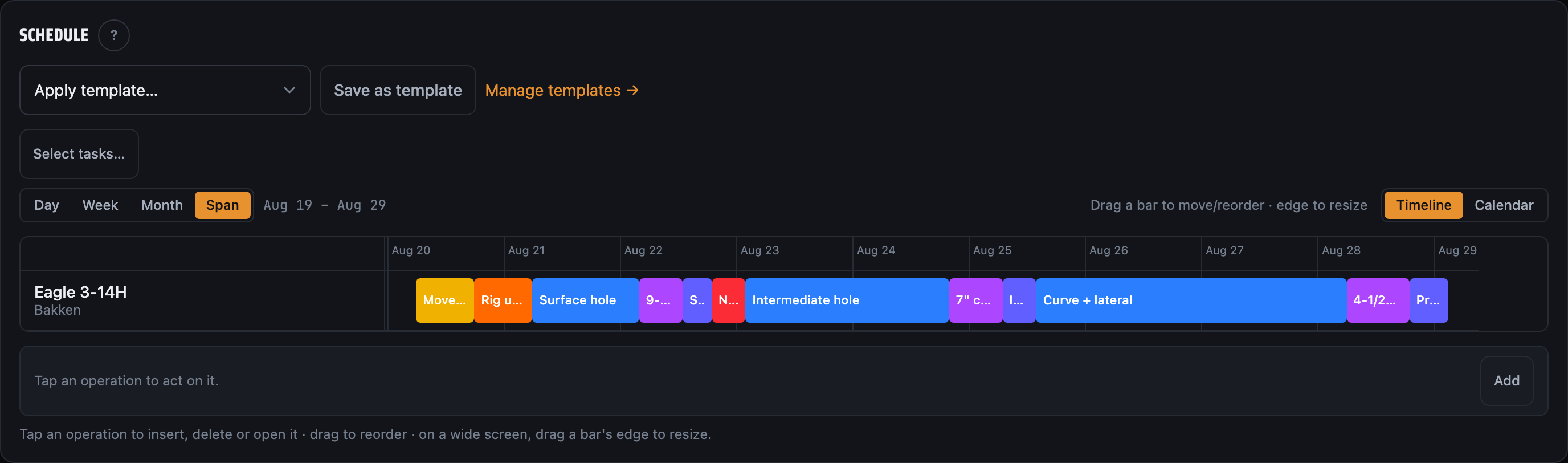
Add operations to the well in the order they'll run. LookAhead Pro keeps them contiguous — each operation starts exactly when the previous one ends, because that's how a rig actually works. Set the very first operation's start time once; every operation after it falls into place automatically.
3. Tune each operation
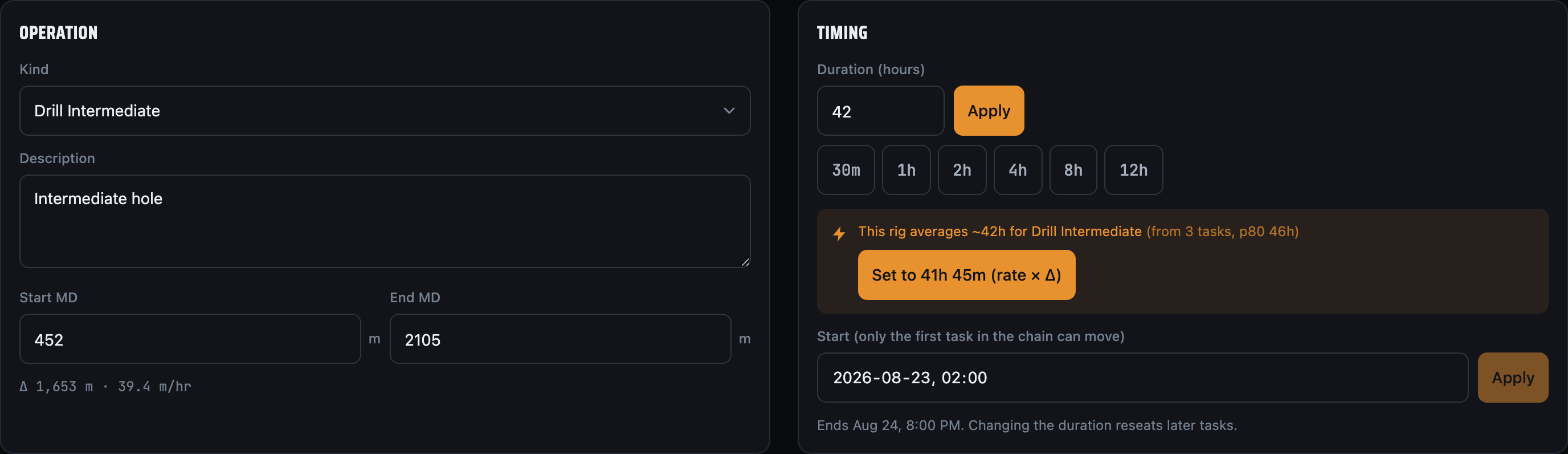
Open any operation to set:
- Kind — pick from the full list of rig operations (Drill, Trip, Ream, Run Casing, Cement, Nipple Up BOP, and more); it drives color-coding and analytics.
- Duration — enter hours directly, or type a drilling rate (m/h) and let LookAhead Pro compute the time, snapped to the quarter-hour.
- Depth — record start and end measured depth (MD); the app tracks meters drilled per operation.
- Description — any notes for the crew.
If you've run the operation before, tap the recommendation to set a duration straight from your own history (see step 14).
4. Plan across a pad — moves and walks place themselves
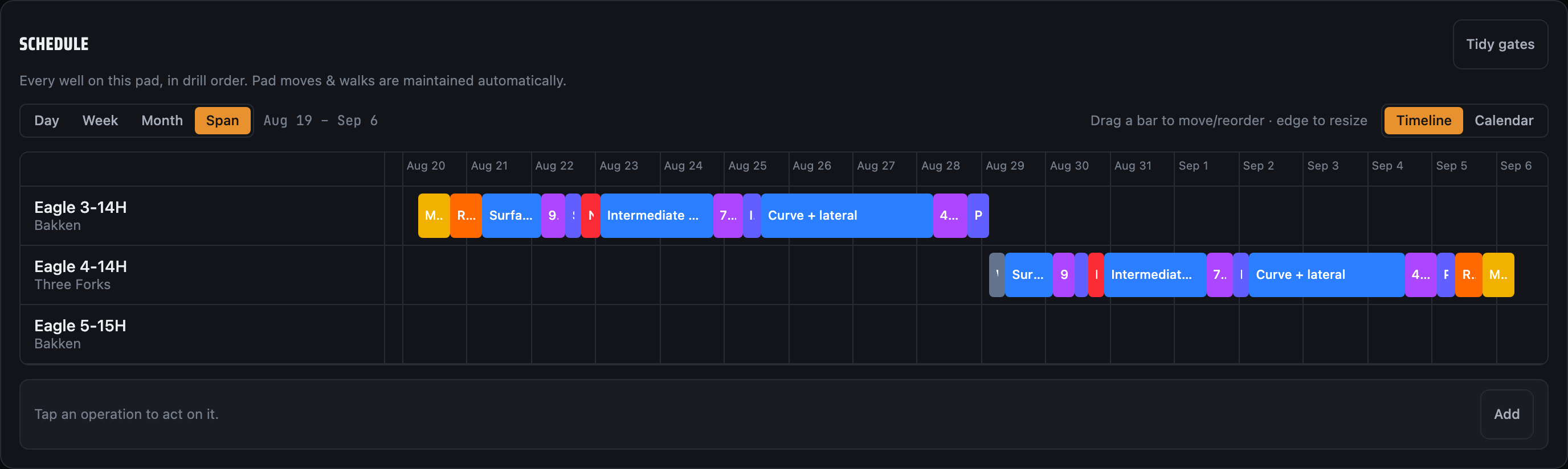
When you sequence wells that sit on a pad, LookAhead Pro inserts the rig's own movements for you — you never place them by hand:
- Move On → Rig Up when the rig arrives on a pad, and Rig Down → Move Off when it leaves — the mobilization and demob at each end.
- Walk between two wells on the same pad — the short skid from one slot to the next.
These gates are derived from your chain and reconciled every time it changes: a pad move appears when the pad changes, a walk when only the well changes. They're order-locked, so an operation can't accidentally jump across a move or walk when you reorder — the rig can't be drilling and tripping down the road at the same time. Their durations come from your rig's defaults at first and sharpen from your own history as you log real moves.
5. Read and edit the schedule
Every schedule in the app — org, rig, pad, well — is the same thing with a different set of rows in it. Read it three ways: as a Gantt on anything wider than a phone, as a vertical time-rail on a phone, or as a calendar in month, week or day. Each screen remembers how you last read it, so the org schedule can open as a calendar while well pages stay on the Gantt.
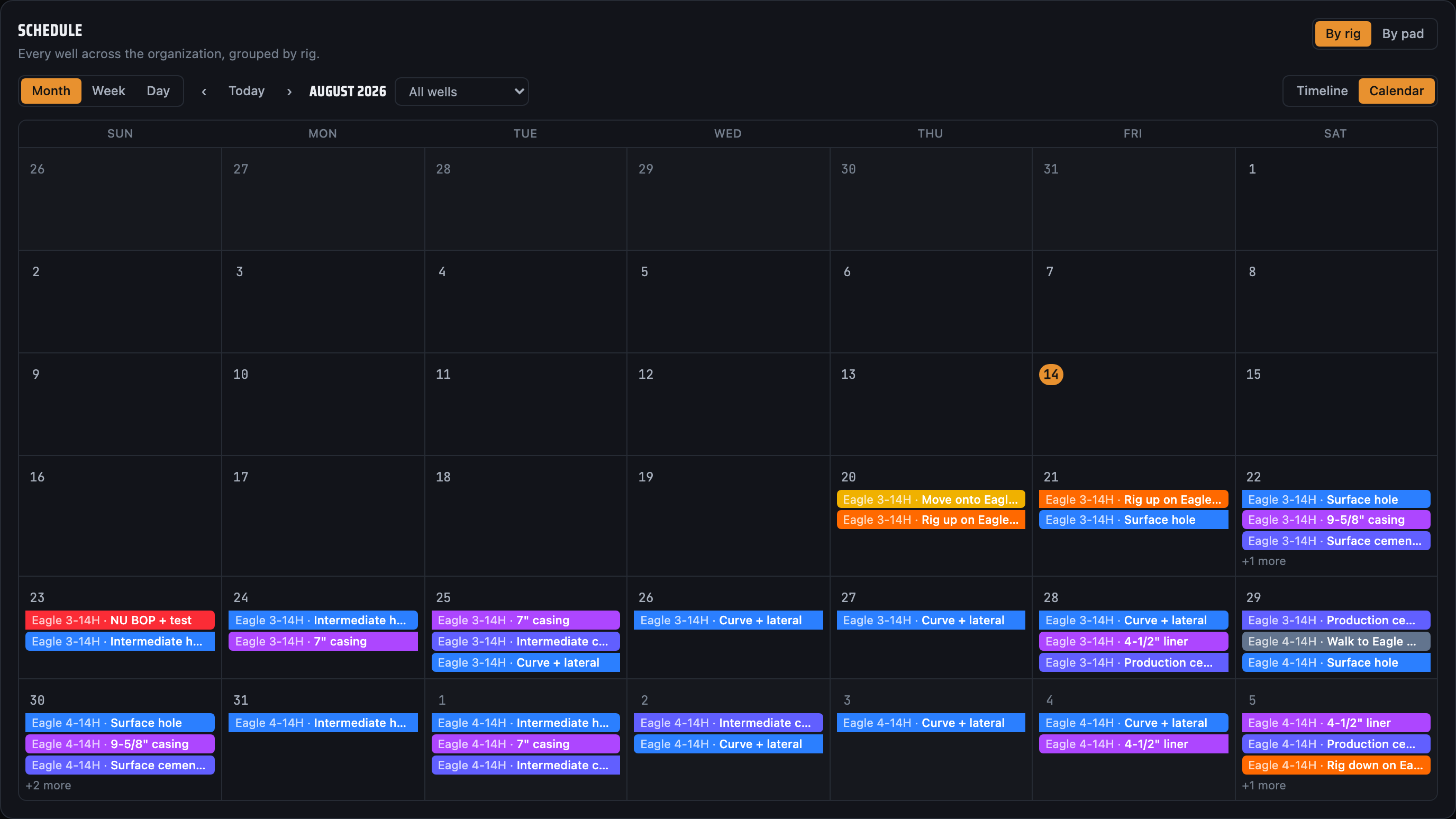
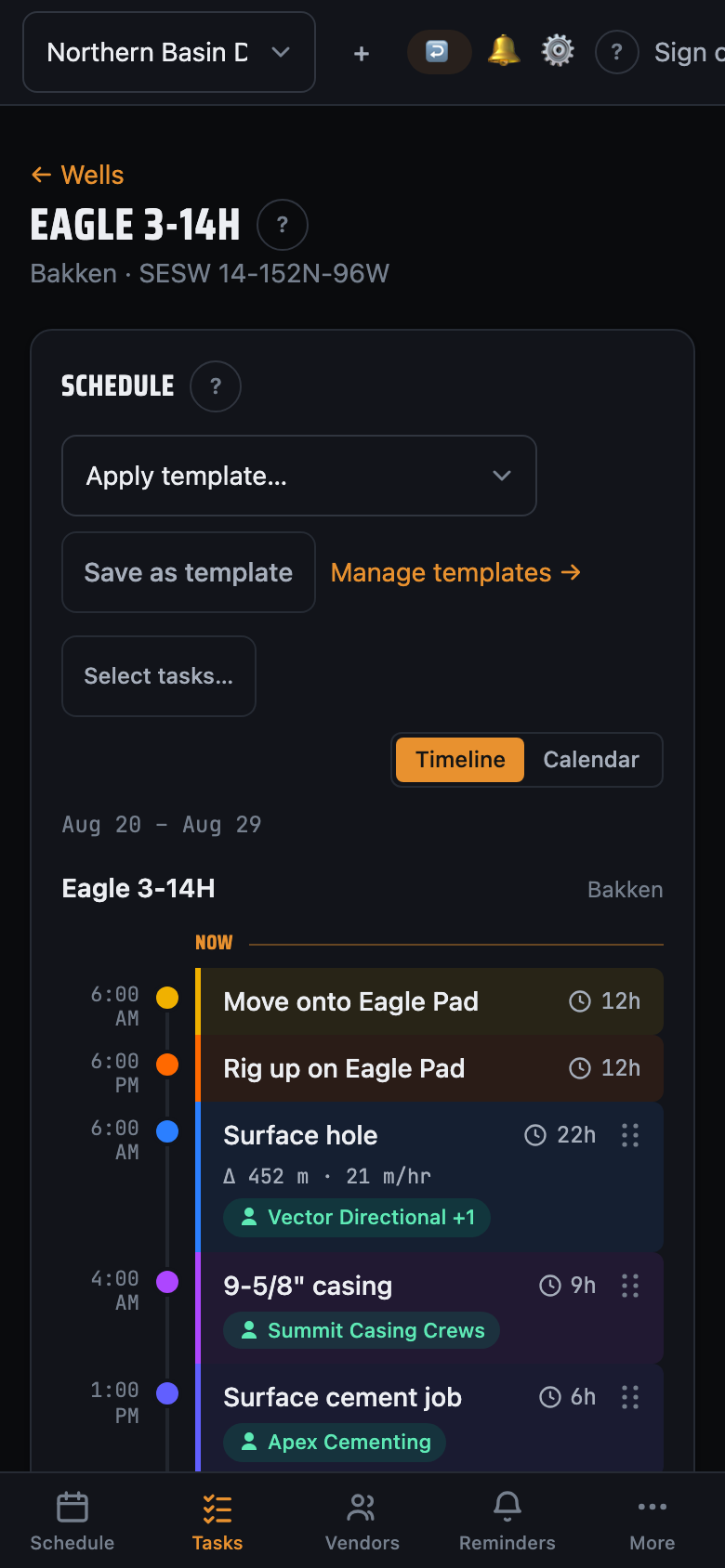
Zoom between day, week and month, or use Span — the default — to fit the work edge to edge and answer "how long is this program?" Jump to now appears only once the present has scrolled off screen.
Editing is object first: tap an operation and a bar appears with what you can do to it — insert, split, walk, select more, open, delete. There's no mode to enter and no picker of seventy operations to scroll. Drag a bar's body to move it in the order (every displaced bar previews live while you drag), or its right edge to resize it — snapped to 15 minutes, with the implied drilling rate on the badge. This is the self-healing part: move or stretch one operation and LookAhead Pro reseats the entire chain after it — the operations, the vendor calls, and the rig's own moves and walks — with no gaps, no overlaps, and no re-typing.
One thing it won't let you do: drag an operation across a rig move. Crossing one would mean the work happened on a different pad, which is a re-sequence rather than a nudge — see the next section.
6. When the day doesn't go to plan
The plan is a prediction; the tour sheet is the fact. Three tools cover the ways a day actually diverges, and none of them ask you to retype the program.
Split an operation
You were drilling the main hole, didn't reach target, and tripped out to change directional tools. That isn't one operation — it's some of the hole, a trip, and the rest of the hole. Tap the operation and Split, type the depth you actually got to, and both halves' depths and hours are proposed from the operation's own planned rate. Then Insert the trip into the gap. If the halves no longer add up to what the operation said, the sheet reports the difference rather than quietly rescaling — drilling slower than planned is the fact being recorded, not an error to normalise away.
Record a walk
The rig walked somewhere the plan didn't expect. Rather than dragging a dozen bars, tap the operation it walked after, choose the well it walked to, and whatever that well had waiting comes with it — its next block moves up and the rest shuffles down behind. The sheet lists the walks the new order produces so you can correct the hours, and shows the rig release date before and after, so the cost of the move is visible before you commit. If the rig walked there to tear out, the pad records it as the well it rigs down on.
Re-sequence the drill order
For a wholesale change, the drill order lists the program as blocks with the moves between them. Press Edit order, move a block up or down — the walks follow it — watch the rig release figure in the footer, then Apply order. Nothing is written until you do, and a re-sequence is a permutation: no operation is created, destroyed, or re-timed beyond the reflow, so putting the order back puts the schedule back.
7. Save your vendors & rig contacts
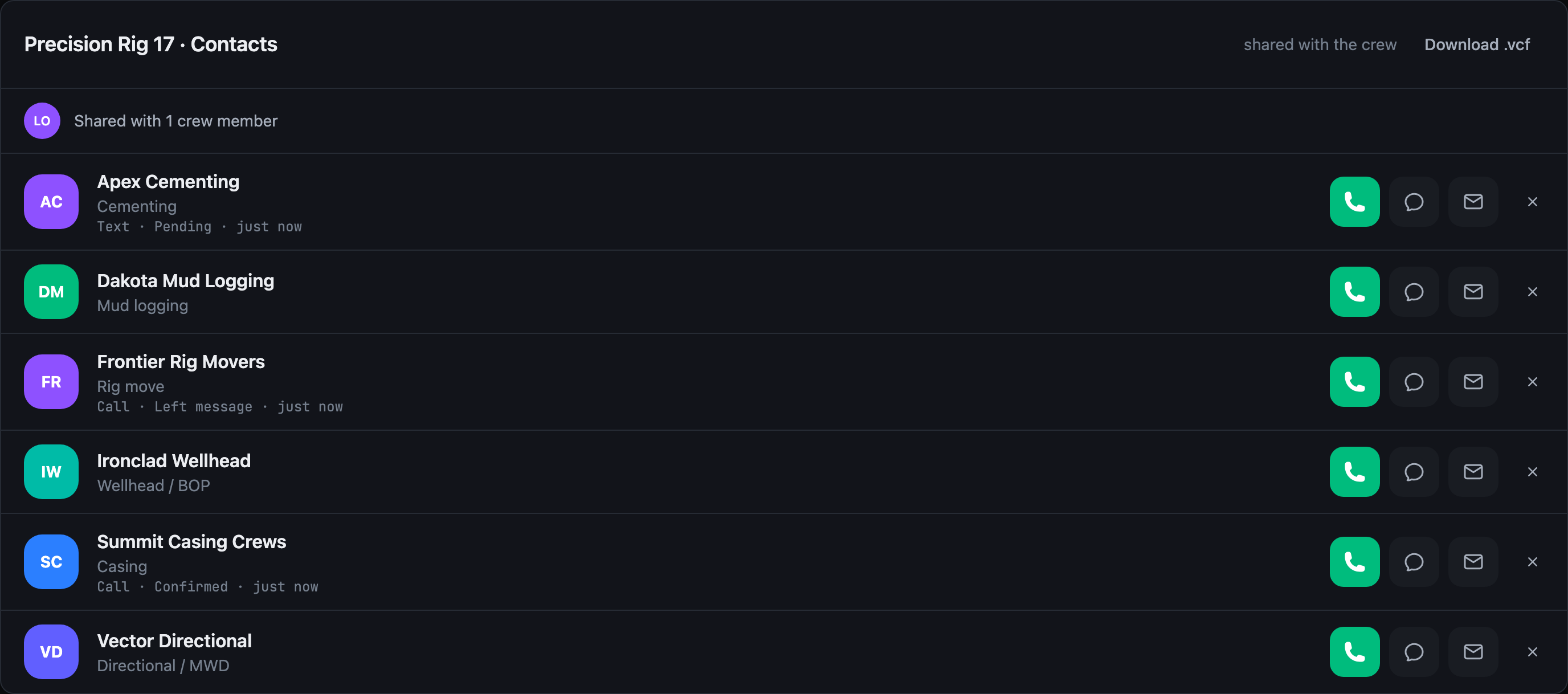
Build the rig's contact book once: add each service company — directional, cementer, casing crew, the office — with a name, role, phone, and email. They're saved to the rig, not your phone, so they're a tap away to call or text, and ready to attach to any operation. Add a teammate and the whole directory shares with them instantly.
8. Attach vendors to operations
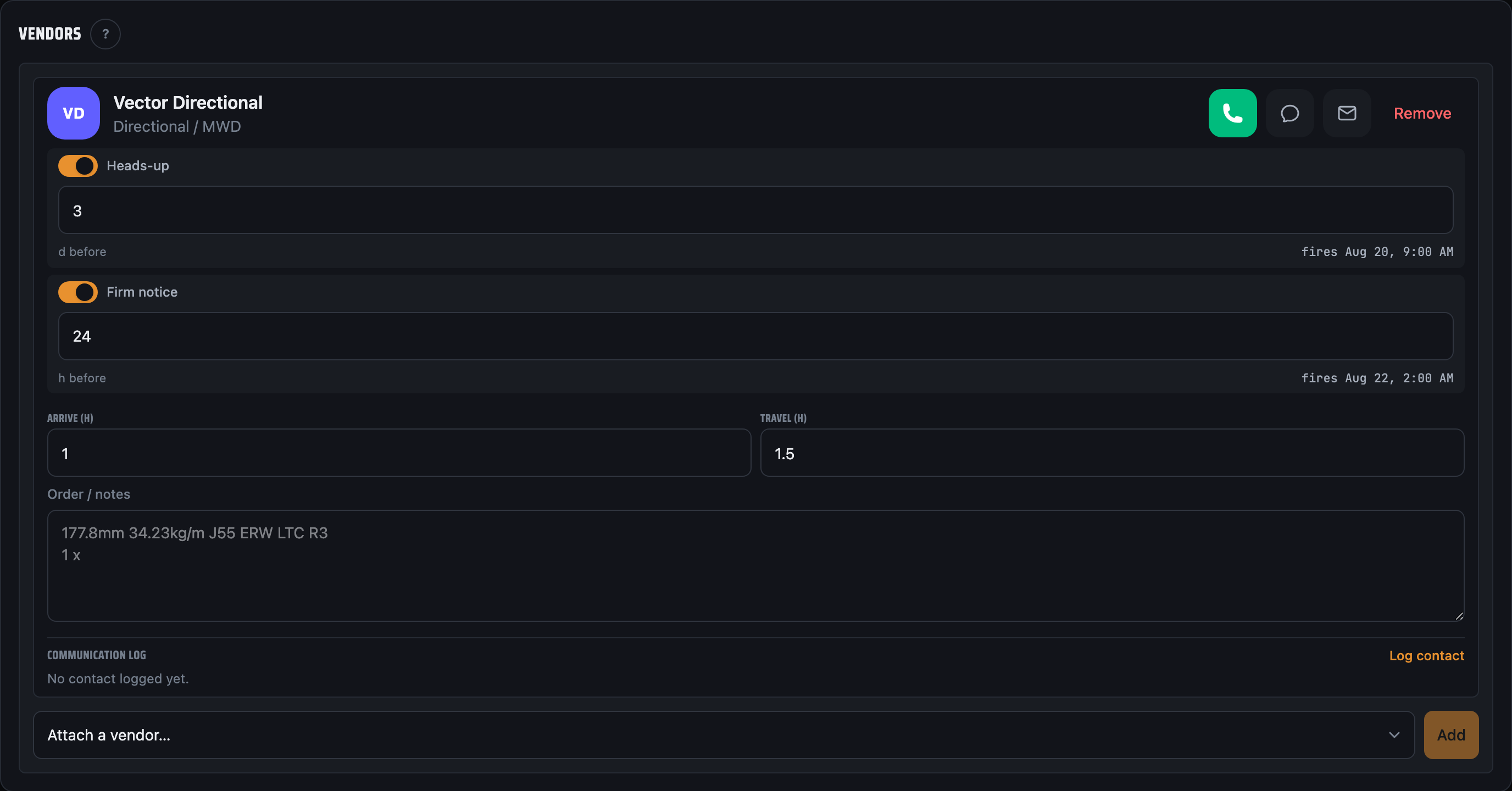
Open an operation and attach the vendors it needs. For each one, set two lead times:
- Heads-up — how many days before the operation to send an early warning.
- Firm notice — how many hours before to confirm timing.
Set them once per vendor and LookAhead Pro handles the timing from there.
9. Get reminders, orders, certs & to-dos — call or text in one tap
LookAhead Pro reminds you ahead of every vendor's window — the early heads-up days out, the firm confirmation hours out — with the operation, well, and rig right there. The in-app inbox is always on; on top of it, each person picks the channels they want to be reached on: push to a phone or browser lock screen, email, or SMS. Settings has a Send a test notification button that fires a one-off to every channel you have enabled, so you never find out it was misconfigured the week it mattered. Long-press the notification (or open the reminder) and the vendor is one tap away to Call or Text. When the plan slips, the reminders re-time themselves along with the schedule, so they never point at the wrong day.
On an iPhone, add the app to your Home Screen first — Safari won't grant push to a tab.
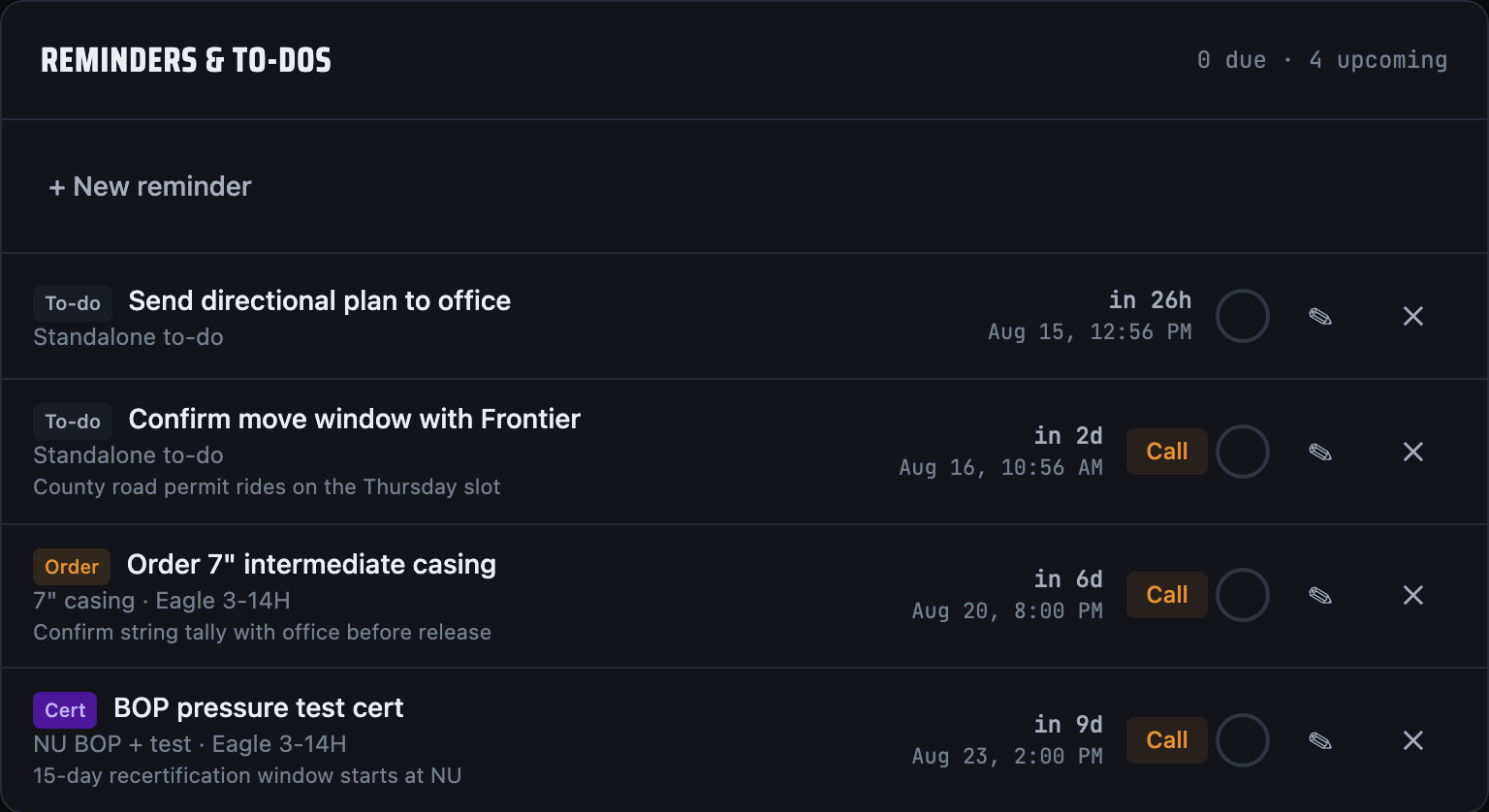
Beyond the vendor notices, the Reminders screen has a Reminders & to-dos board for everything that supports the job but isn't a step in it — ordering casing, a 15-day BOP pressure test, or a plain "call this guy" note. Pin one to an operation and it rides the schedule: an order fires a set number of days before the operation starts, a cert fires after it ends, and both slide when the plan moves. Or add a standalone to-do with its own date. Each one fires once at its time, then keeps nudging on an interval you set until someone marks it Done — and because the board is live and shared, the next tour sees exactly what's still open and who already handled it.
10. Send an order — and keep the log
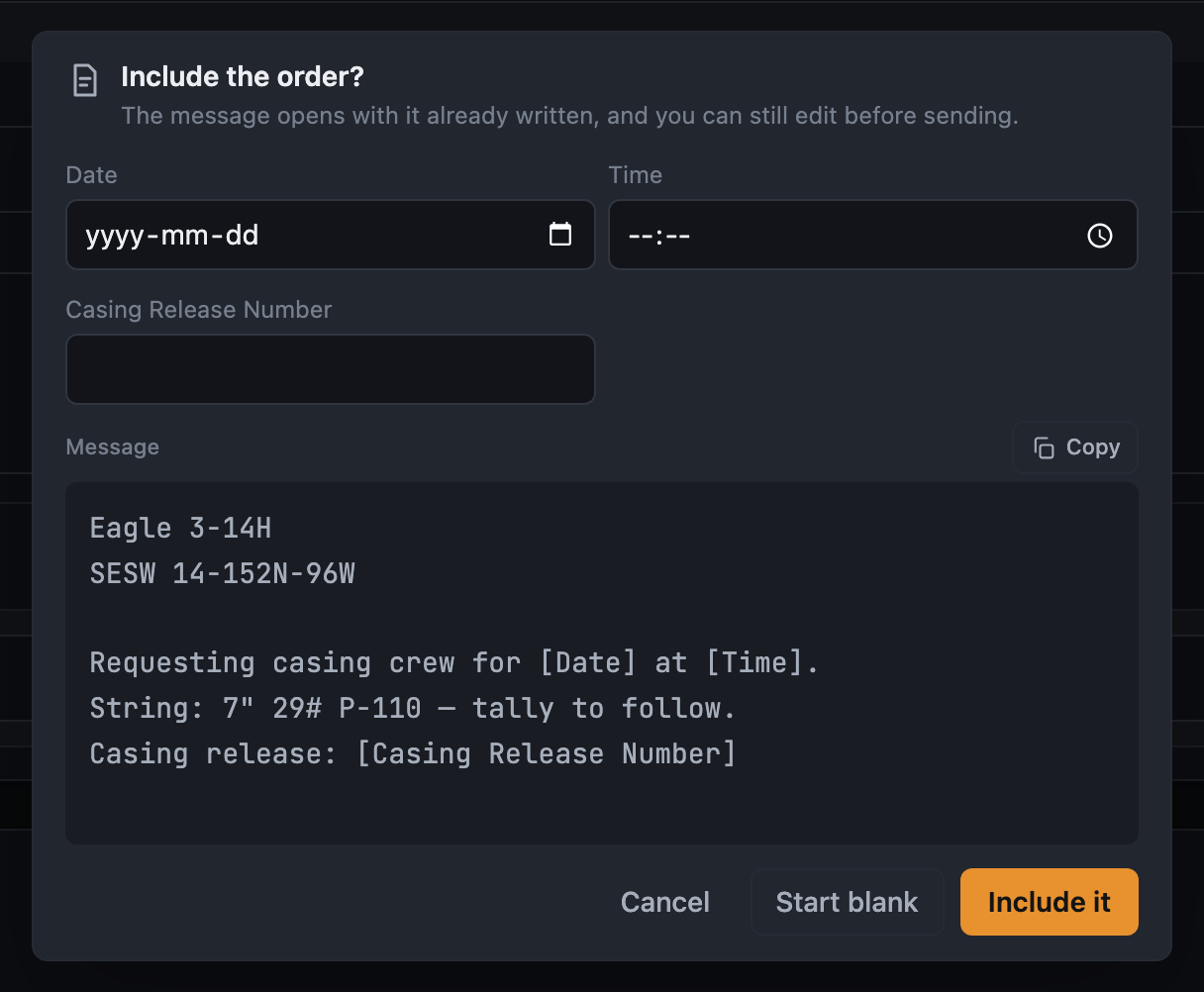
Wherever you can call a vendor you can also send them something. Tap Text or Email and, when there's an order worth sending, the app asks first rather than deciding for you — most contact with a vendor isn't an order.
The ends of the message are fixed and the middle is yours: the well and its AFE always open it, the directions to location always close it. Those come from the well, its pad and the operation, so you never type them — which is why the same template works from a task, a rig sheet, or the vendor's own page. Each vendor carries what you order from them (you order casing from a casing supplier, not a fluid hauler), pre-filled whenever that vendor lands on an operation.
Anything in square brackets is a blank you fill on the way out, labelled with whatever you
wrote between them — [Casing Release Number] becomes a field called "Casing
Release Number". The label picks the control too, so a label with the word
date in it gets a date picker, time gets a clock, and
[Days] gets a strip of calendar days you tap out — a set rather than a span,
because the gaps are the point. No syntax to learn: nothing in a casing spec uses
brackets. A blank you leave unfilled keeps its brackets on the way out, on purpose — an
order that arrives saying [Casing Release Number] is obvious and fixable; one
that silently dropped the number is neither.
Each vendor carries a second template alongside the order one: a
billing template. It's a different document — it states what happened
rather than asking for something — so it gets its own wording. Put
[Equipment] where the list of kit and days should sit and it's filled from
the tick list rather than typed; leave it out and the block is appended underneath. That's
what the mail and text buttons on the end-of-well billing rows send.
On the send panel the preview is the message, not a summary of it. For email, the
To line and the Subject copy separately for pasting into a webmail compose form — worth
knowing because a mailto: opens whatever mail app the machine registered,
which on a shared rig laptop is routinely not the account you're signed in to (point it at
Outlook or Gmail in Settings). Send it, or start blank to reach the same person with
nothing attached; either way the contact is logged, and so is copying the message instead
of sending it.
Every call, text and email is logged automatically — who, when, which channel, and what was sent — with a one-tap outcome afterwards (confirmed, pending, left message, no answer, rescheduled). Read it org-wide for the morning report, on a vendor's page for their whole history, or as a line under each name on the rig's contact sheet, so two people don't ring the same crew twice.
Coming soon: the vendor replies to confirm and the operation updates itself, so you're not chasing calls from the rig floor.
11. Track rental days & bill the well
Log a tool when it lands: what you call it ("6-3/4 motor"), the serial number off the plate, and who it's rented from. On a rig with forty subs on it the name is the least distinguishing thing — six rows read the same and only the serial says which one anybody means, which is why it's the searchable field.
Two ideas are kept deliberately apart:
- Possession — arrived until shipped back, or until today while it's still here. What you're holding.
- Billing — possession minus the days it earned nothing. If you're using it you pay for it; it can be on location and cost you nothing.
Nothing accumulates day by day. Everything derives from two dates and a set of excluded days, so an open rental keeps counting correctly without anyone touching it. Set the status to In use and every day from here bills until you say otherwise; On location and the days ahead cost nothing — which is what stops a tool parked in the shack quietly resuming billing at midnight. To correct a day, tap the day chips: filled days bill, struck-through days are free. On a wide screen you can drag across the Gantt row to set a run at once, or drag the bar's ends to move the arrival or the ship-back.
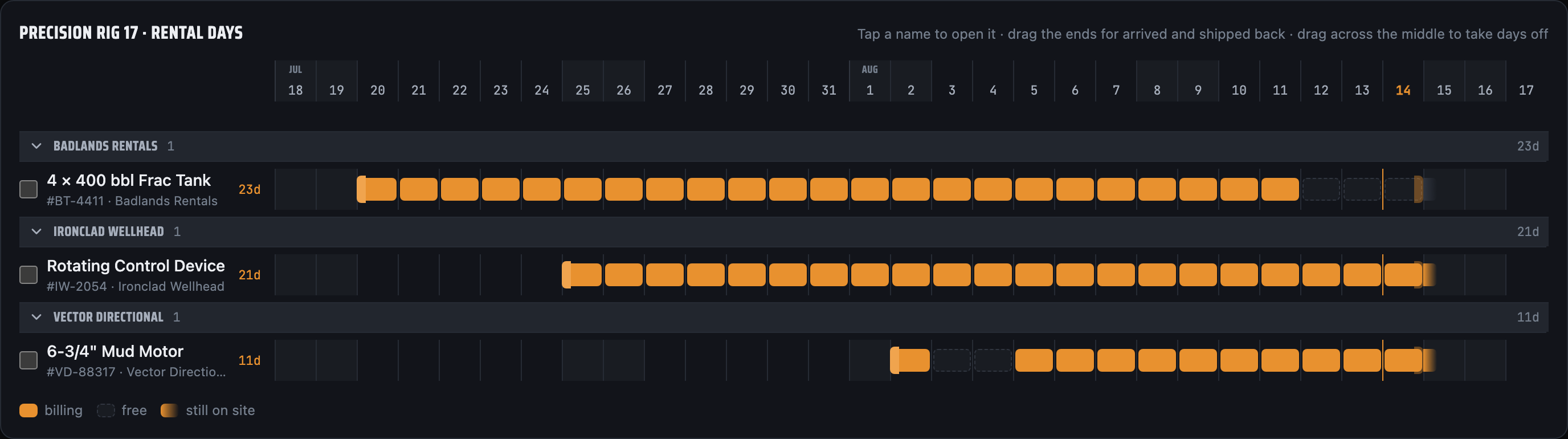
Which well a day charges to is derived from the rig's own program — whichever well the rig spent most of that calendar day on — never stored, because a stored snapshot goes wrong the first time the schedule is dragged, and schedules get dragged constantly.
At the foot of a well's page, end-of-well billing lists every company owed days on that well. Filter to Not sent — the default, because that's the work left — send a company their days with the mail or text button on the row, then mark it sent or skip it. The list is derived and only your progress is stored, so you can close the app halfway through and pick it up tomorrow with your ticks still on it. Days are listed individually and never collapsed to a range: a vendor reading "Mar 1–5" bills five days for work that was four. And when what you claimed differs from what the program now derives, the row shows both — "12 days · sent as 11" is what settles a query about an invoice a month later.
What actually goes out is that vendor's billing template (see step 10), carrying the well, the AFE, and one line per rental with the days spelled out. Untick anything on the send panel you aren't claiming before it goes.
12. Reuse a program with templates
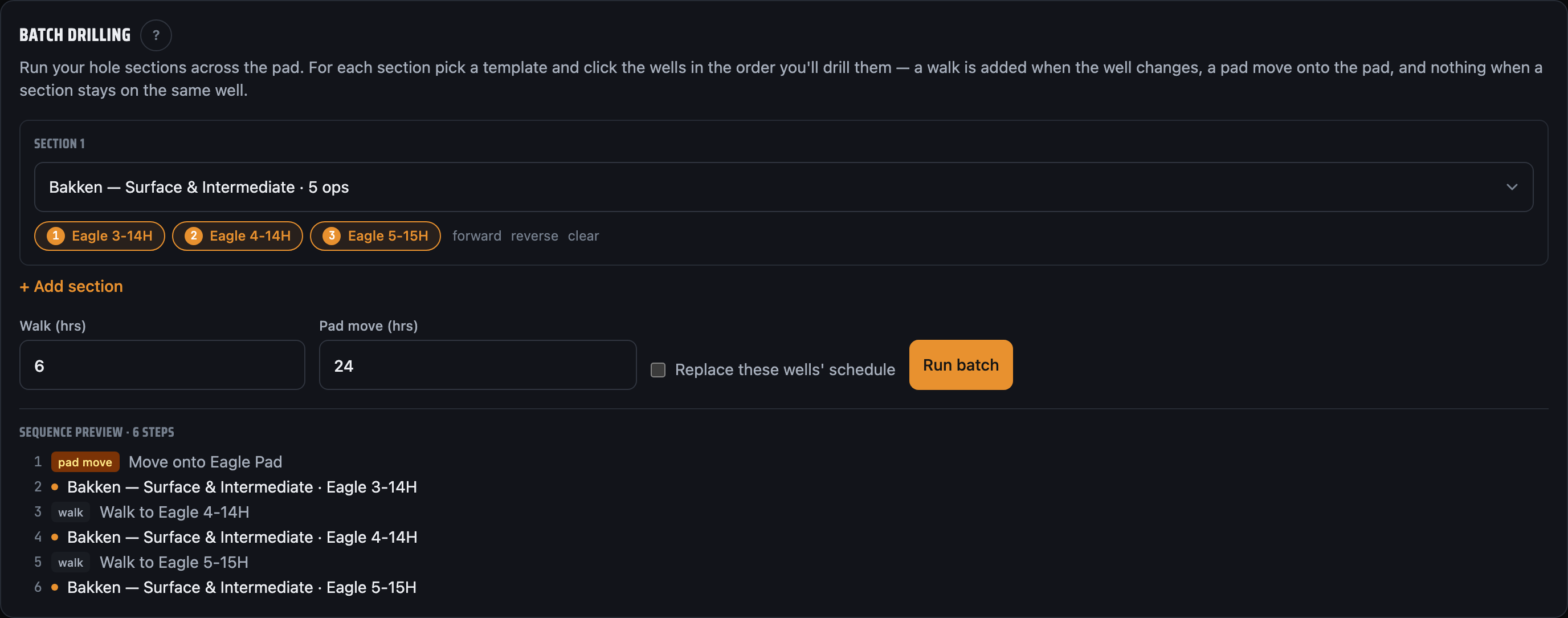
Most wells on a pad look alike. Copy a proven sequence from one well onto the next in seconds — operations, attached vendors, depths, and any pinned order or cert reminders come along — instead of rebuilding the program by hand. The copied plan appends after whatever the new well already has. Batch drilling? Stamp one hole-section across every well on a pad at once and LookAhead Pro builds the sequence with the pad move and the walks already placed.
13. Bring your crew
Invite your team and set roles — owner, admin, or member — so the right people can view, edit, or manage. Everyone sees the same plan, updating live across phone, tablet, Mac, and PC the moment anything changes.
14. Learn from your history
Every completed operation feeds back in. LookAhead Pro records how long each kind of operation actually took and how fast you drilled, then recommends durations for the next one — by job code and by meters. It learns your rig moves and walks the same way. The analytics view shows the count, the average, and the typical 50th–80th percentile range per operation type, so your estimates get sharper every well. Operations group by their kind exactly as written, so a custom category becomes its own job code — which is the point of making one.
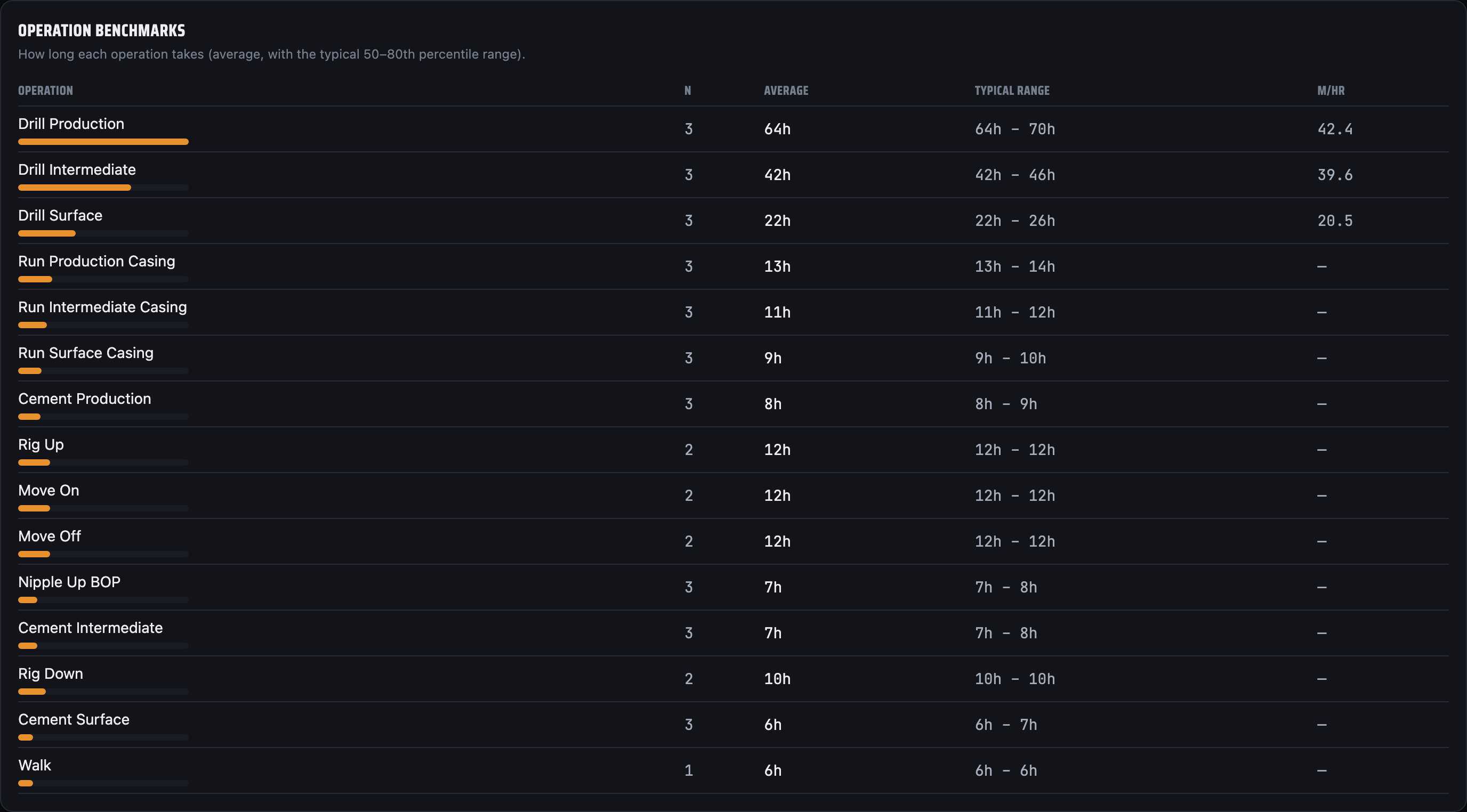
Alongside the benchmarks: AFE vs scheduled compares your budgeted days per section against the plan, section by section, on the well itself and across every well at once (rig moves and rig up/down charge to no section — they're the only time not booked against a hole). A share-of-time bar shows where the rig's time actually goes across drilling, casing and cement, circulating, walks, pad moves and rig up/down. And a depth vs days curve tracks each well from spud.
Log non-productive time against the operation it happened on — weather, equipment failure, waiting on a vendor, stuck pipe, hole problems, rig repair, waiting on orders. It's purely a record and doesn't move the schedule; the operation's card shows its scheduled duration against the rig's typical time for that kind, so the NPT you log is the explanation of the difference. Analytics totals it by cause and as a share of scheduled time.
Analytics and templates are team capabilities — they're part of Crew and above, and free for everyone during the beta.
Tips for the field
- Only the first operation in a rig's chain has an editable start — everything else is positional and follows the chain. To shift the whole plan, change that first start.
- It's built for low-connectivity sites: plan at the rig and sync when you're back in signal.
- Use the same look-ahead whether you're drilling or completing — the operation list covers both.
Need a hand?
The full manual lives inside the app at app.lookaheadpro.app/help — every screen explained, a glossary, a troubleshooting page for the things that look broken and aren't, and a ? beside most page titles that opens the article for wherever you're standing. It works offline, like the rest of the app.
Still stuck, or want a walkthrough for your operation? Email hello@lookaheadpro.app — we read everything. Otherwise, jump in — poke around Northern Basin Drilling, the example org this whole page was photographed in, then build your first look-ahead.